Topics

CAP: Create a Task
on
Last updated on
What is CAP?
CAP is the Concise Digital Concise Access Portal
Prerequisites:
To access CAP you will need a
- Company Account with Concise Digital – if you are a client of Concise or Firefly, you will have one of these already
- CAP username/password – if you are a client of Concise or Firefly, and you do not know your login, please contact [email protected] and we will get one setup you for you asap.
Login:
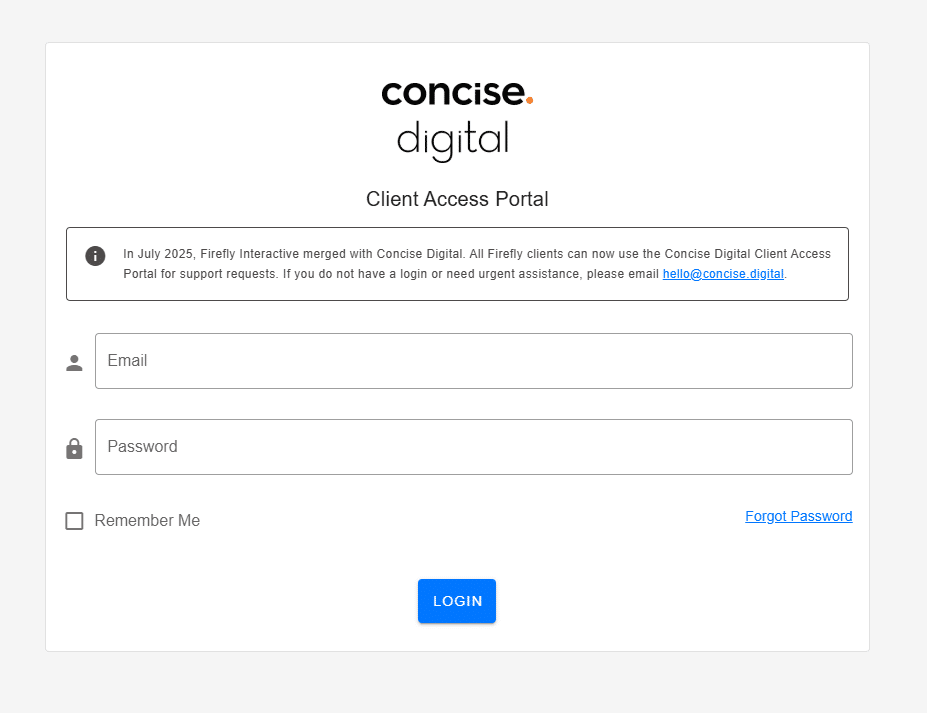
Access CAP via https://clients.concise.digital and login with your email address and password.
Create a Task:
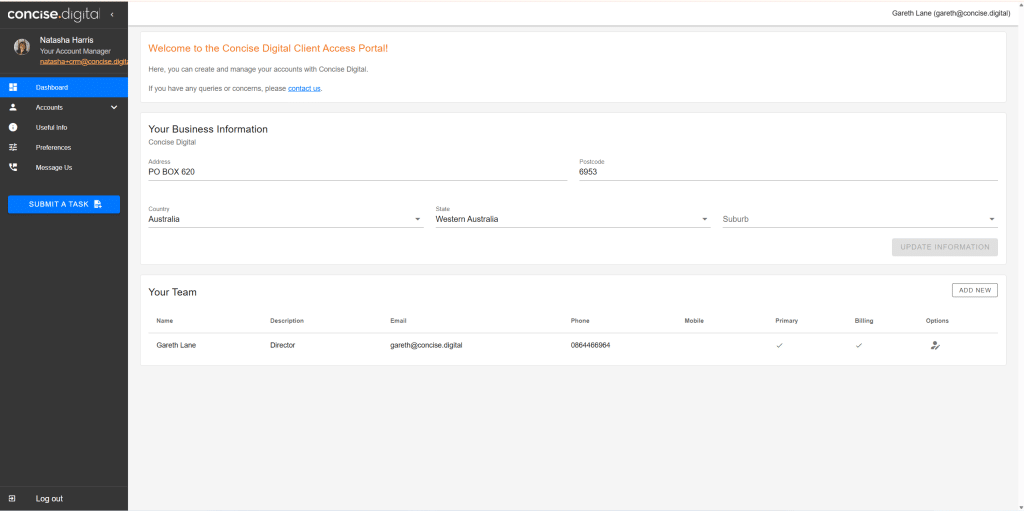
To create a task, click the “Submit a Task” button on the left hand side
Fill in your Task Request:
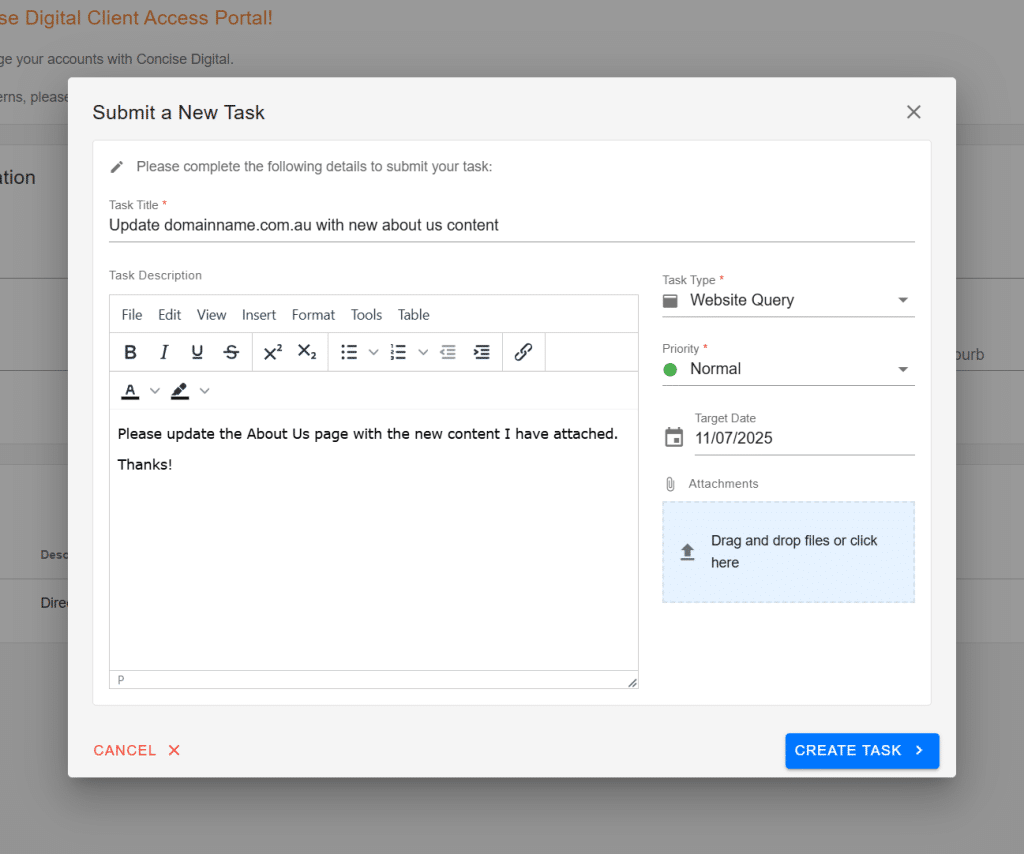
Title: A summary of the task request
Task Description: Detailed instructions. Use numbered dotpoints where possible
Task Type: Choose the most relevant task type to help us get your task to the right person as quickly as possible.
- “Website Query” – tasks related to your Website, if we look after multiple websites, include the domainname.com.au so we know which website
- “Digital Marketing” – tasks related to Digital Marketing, Google Ads, SEO, Social Media, Email Newsletters etc
- “Hosting Query” – tasks related to domains, hosting, ssl, emails etc
- “Accounts Query” – queries related to accounts
Priority: Choose the most accurate priority to help us prioritise work
- Critical – please only use this in emergencies/genuine mission critical scenarios as our team will stop all other work to address this as a priority
- High – use when a deadline is non negotiable
- Normal – default
Target Date: Choose an appropriate target date. We will do our best to meet this date or advise otherwise.
Attachments: Upload any supporting screenshots or attachments relevant to the job.
Submit your Task:
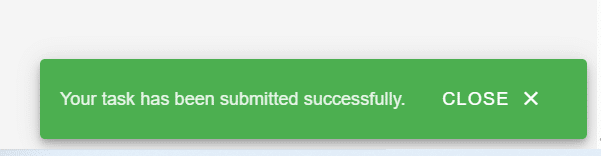
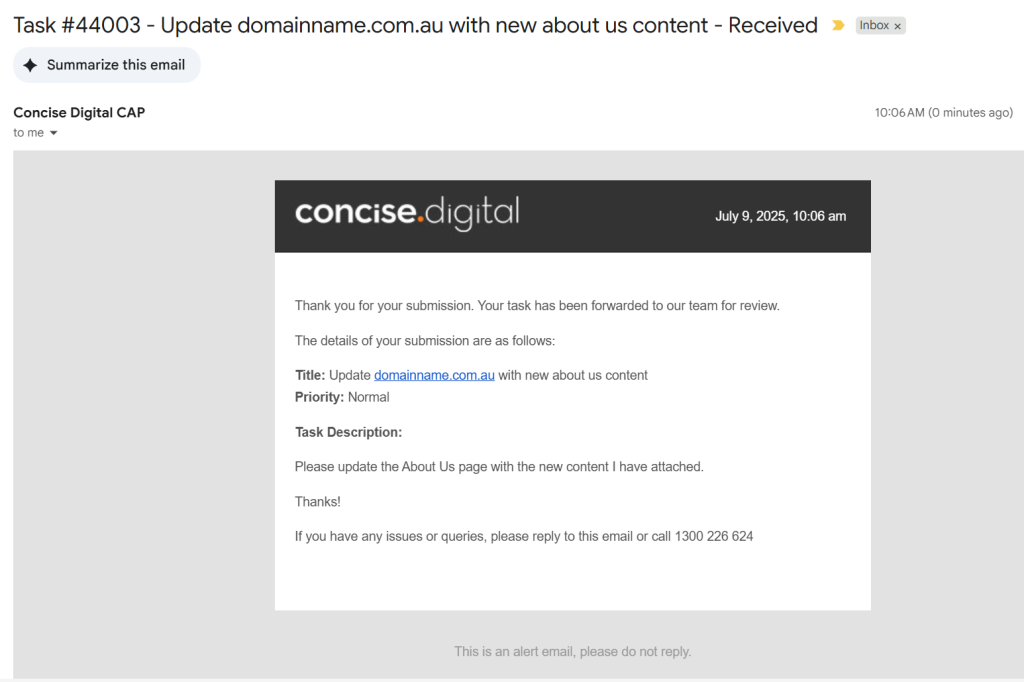
Once you have created your task, click Submit and all being well, you will receive a confirmation message and email.
Email Confirmation:
Paying Invoices
Once logged in to your CAP, click on Accounts on the left hand side, then select Invoices from the dropdown.

Your Invoices page shows a full summary of your account, including your Outstanding, Scheduled/Processing, and Available Credit balances, along with a list of individual invoices.
To pay an invoice:
- Tick the checkbox next to the invoice(s) you’d like to pay under the Pay column.
- Click Schedule payment of $[amount], shown above the invoice list.

Update Your Payment Details (if required):
If you need to update your payment method before scheduling a payment, click Update or Cancel Payment Profile on the Invoices page. From here, select Update your Payment Profile, choose either Credit Card or Bank Account, and fill in the required details.
Note: Direct Debit payments made to a Bank Account are fee-free.

Schedule Your Payment:
After clicking Schedule payment, a Schedule Payment window will appear.
Payment Type: Choose Once-off to pay the full amount, or Split to divide it across multiple payments
Payment Date: Select your preferred date. Payments can be scheduled for Tuesdays and Thursdays
Payment Amount: Confirm or adjust the amount to be paid
Please note, there is a maximum payment limit of $4,000 per day – if your outstanding balance exceeds this, please schedule any additional payments for a subsequent available date.
Tick the confirmation checkbox to confirm the payment can be processed by Concise Digital, then click Schedule Payment.

Once scheduled, your payment will be processed on the selected date, and your Invoices page will update to reflect the amount as Scheduled/Processing.